When working on a Git-integrated project, we constantly create, modify, and delete files. At some point, those changes need to be saved to the project's history. In Git, that's exactly what a commit does — and you can return to any commit in your history at any time.
One of the most common misconceptions among Git beginners is thinking of a commit as Ctrl + S or a save point in a video game. Git works differently. Ctrl + S overwrites the file in place, while git commit writes a new entry to the history — one you can always come back to.
Every time you commit, Git takes a snapshot of all files in the project at that moment. If a file hasn't changed, Git doesn't copy it again — it just creates a reference to the previous version. This is what keeps Git fast and efficient.
Running git commit is like saying: "At this exact moment, by this person, the project looked exactly like this — and I want to record that."
How Does Git Commit Work?
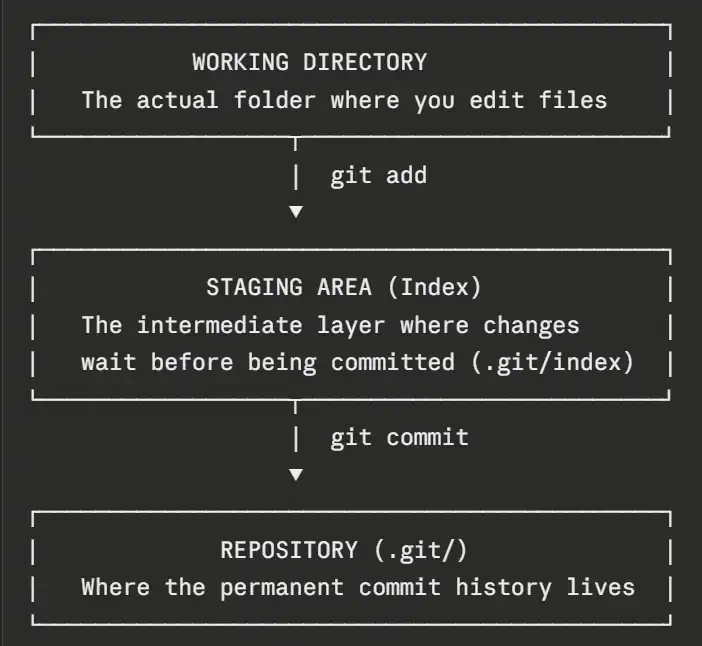
To understand how a commit works, it helps to look at the three stages every file passes through in Git.
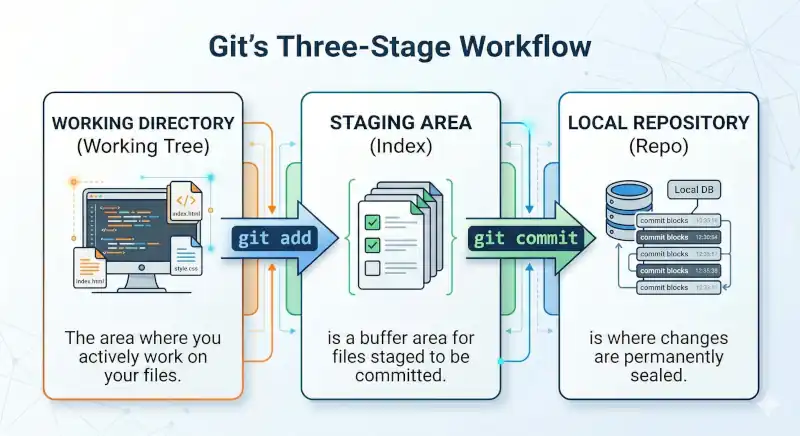
- Working Directory: This is where your project files live on your local machine. Git can see changes here, but until you commit them, they don't get written to the permanent Git history — Git simply doesn't care about them yet.
- Staging Area (Index): A temporary area that holds the changes you want to include in your next commit. You move files here using the git add command. Think of it as the step right before committing.
- Local Repository: Where changes are permanently stored in Git's database. When you run git commit, everything in the staging area gets written here for good.
Every commit gets a unique 40-character ID generated via SHA-1 hashing. That ID lets you access the commit at any time and see who made the change, when, and why.
What is a Parent Reference in Git?
Every commit except the first one points to the commit that came before it. This is what creates a connected chain of history rather than a pile of disconnected snapshots.
What Makes a Good Commit Message?
Since the whole point of committing is to record what you did, the message you write matters. It should make sense when you look back at it later — or when a teammate reads it for the first time.
A good commit is atomic and descriptive. That means each commit should represent a single logical change. Mixing a button color fix with a bug fix in the same commit is a bad idea — if you ever need to revert the color change, the bug fix comes back too. For a deeper look, check out our guide on what makes a good git commit.
Git Commit Parameters
- The essential one:
git commit -m "message"— This is the parameter you'll use in almost every commit. It lets you write your commit message inline without opening a text editor. Example:git commit -m "change button color". If you want a multi-line message, you can use-mtwice — the first is the subject, the second is the body. - Skipping the staging area:
git commit -a -m "message"or--all— If you've only modified files Git is already tracking and don't want to run git add manually, this flag handles both steps at once.
It behaves as if you ran git add and git commit together.
Usage:git commit -a -m "message"or shorthandgit commit -am "message".
Note: This does not include new (untracked) files. It only stages modified or deleted files that Git already knows about. - The "undo" button:
--amend— Use this when you realize right after committing that you made a typo in the message or forgot to include a file. Instead of creating a new commit, you rewrite the last one.
Warning: Amending changes the commit's hash. If you've already pushed that commit and amend it, you'll create a conflict with anyone who pulled it — the parent-child chain gets broken. -
- To fix just the message:
git commit --amend -m "correct commit message" - To add a forgotten file, two steps:
-
- Stage the forgotten file:
git add forgotten_file.html - Merge it into the last commit:
git commit --amend --no-edit— The--no-editflag keeps the existing message unchanged.
- Stage the forgotten file:
- To fix just the message:
Git Commit Example
Let's say you accidentally committed a file you never meant to include. What do you do?
Imagine you ran git add . to stage index.html, but an unrelated file — passwords.txt — got pulled in too. You then ran git commit -m "great design" and both files ended up in the commit.
There's a way to remove the sensitive file without deleting your code.
- First, remove the unwanted file from Git's tracking:
git rm --cached passwords.txt— This does not delete the file from your disk, it just removes it from the staging area. - Then patch the commit: Now your staging area only contains
index.html. Run:git commit --amend --no-edit— The--no-editflag keeps the commit message as is.
Is Git Commit Enough on Its Own?
Git commit only saves what's in the staging area. This is one of the most common points of confusion for beginners. Files you've changed in your working directory but haven't staged with git add will not be included in the commit.
Advanced Git Commit Parameters
- --allow-empty: By default, Git won't let you commit if nothing has changed. But sometimes you need to trigger an automation — like a CI/CD pipeline — without actually changing any code. That's what this flag is for.
git commit --allow-empty -m "trigger pipeline" - -S: Signs the commit with a GPG key to cryptographically verify authorship. Used in security-critical projects.
- -p (Patch): Lets you commit only specific chunks of a file rather than the entire thing.
- --dry-run:
git commit --dry-run -m "test"— Doesn't actually create a commit, but shows you what would be included if you did. Useful for double-checking before committing. - --author and --date: Git normally pulls this information from your system config. These flags let you override them — for example, committing on someone else's behalf or backdating a commit.
Git Commit Parameters (Summary)
| Parameter | Description | Example |
|---|---|---|
-m |
Adds a commit message | git commit -m "message" |
-a |
Automatically stages tracked files | git commit -am "message" |
--amend |
Rewrites the last commit | git commit --amend |
--no-edit |
Keeps the existing commit message | git commit --amend --no-edit |
--allow-empty |
Creates a commit with no changes | git commit --allow-empty -m "test" |
--dry-run |
Shows what would be committed without committing | git commit --dry-run |
Git Add vs Git Commit
Changes in Git don't go straight to the history. First, you stage them with git add, then you save them permanently with git commit. This two-step process is one of the first things that trips up Git beginners.
- git add: Prepares changes for the next commit.
- git commit: Saves those staged changes to Git history.
In short: add selects, commit saves.
How to Write a Multi-line Commit Message in Git
GitHub and GitLab render the subject and body of a commit message separately. git log --oneline shows only the subject line, while the body appears when you run git show <hash>. In personal projects this rarely matters, but in team or open source work, a well-written body answers the "why" behind a change — and that makes your history genuinely readable. There are two ways to write a multi-line commit message:
- Using -m twice: The quicker option.
git commit -m "subject" -m "body". Fast but limited — works fine for a short note. - Using an editor: If you run
git commitwithout-m, Git opens your default editor (usually Vim or Nano). The first line is the subject, followed by a blank line, then the body. Better for longer explanations.terminalChange button color from red to blue ← subject (50 chars recommended) ← blank line (required) Red failed the contrast accessibility ← body (72 chars/line recommended) check. Blue (#1a73e8) meets WCAG AA standards.