One of the most frequently used Git commands. In its simplest form, you just type git status. It's part of most developers' daily routine because it gives you a quick snapshot of your repository's current state — which branch you're on, which files are staged, unstaged, or untracked. The output can be customized with various flags.
This is the command you run when you think "what did I even change?" before making a commit.
Depending on the flags you pass, the output can be simplified or expanded. These flags can be grouped under three categories: output format, detail and content filtering, and comparison and rename detection.
A) OUTPUT FORMAT:
-
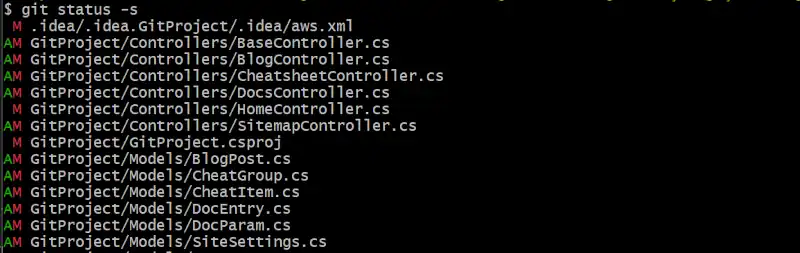
--short (or -s): Displays each file on a single line using a two-character status code. The left character represents the staging area, the right represents the working directory. Both can be set if a file has changes in both areas.
Character Meaning Where it appears ' 'Unmodified Left or right MModified Left or right AAdded Left DDeleted Left or right RRenamed Left ?Untracked Both !Ignored Both -
--branch (or -b): Adds branch information to the output, including how many commits ahead or behind you are compared to the upstream branch. Usually combined with
-s.Tip:
git status -sbis a popular daily driver — compact output with branch context at a glance. -
--show-stash: Includes the number of stashed entries in the output.
Useful for catching stashes you forgot about. Adds a line like Your stash currently has 2 entries to the output.
B) DETAIL AND CONTENT FILTERING:
-
--untracked-files (or -u): Controls how untracked files are displayed. Three modes are available:
-uno: Hide untracked files entirely-unormal: (default) Show only the directory name, not its contents-uall: List every untracked file individually
-
--ignored: By default, files matched by
.gitignoreare hidden. Use this flag when you're trying to figure out why a file isn't being tracked. -
--verbose (or -v): Shows not just the names of staged files, but their actual line-by-line diff. Using -vv also includes unstaged changes.
C) COMPARISON AND RENAME DETECTION:
-
--ahead-behind / --no-ahead-behind: Shows or hides how many commits your local branch is ahead of or behind its upstream.
Advanced rename detection:
-
--find-renames[=n]: Git can detect that a deleted file and a newly added file are actually the same file renamed, based on content similarity.
nsets the similarity threshold (0–100). For example,--find-renames=80treats files with 80% matching content as renames. The default threshold is around 50%. -
--no-renames: Disables rename detection entirely. Git will always show a rename as a separate delete and untracked file.
| Flag | Shorthand | What it does | Frequency |
|---|---|---|---|
--short |
-s |
Compact one-line output per file | ⭐⭐⭐⭐⭐ |
--branch |
-b |
Adds branch name and upstream diff | ⭐⭐⭐⭐⭐ |
--untracked-files |
-u |
Controls how untracked files are listed | ⭐⭐⭐ |
--show-stash |
— | Shows the number of stashed entries | ⭐⭐ |
--ignored |
— | Lists files ignored by .gitignore | ⭐⭐ |
--verbose |
-v |
Shows line-by-line diff of staged files | ⭐⭐ |
--ahead-behind |
— | Shows/hides upstream commit difference | ⭐⭐ |
--find-renames |
— | Detects renamed files by content similarity | ⭐ |
--no-renames |
— | Disables rename detection | ⭐ |
For all available flags: git status --help
After reading the git status output, the next step is usually staging your changes or making a commit. Continue with git add or git commit.